Find us on Google+
Showing posts with label google. Show all posts

Wednesday, January 15, 2014

Google Image Search by License

I'm a fan of using Google Image Search to find pictures for my PowerPoint presentations. But there are legal limits to what I can use -- defined by the license on the photo -- so I need to be careful. For a long time Google just slapped a generic warning on the search results that alerted you to copyright issues. Caveat Emptor, or something like that.

Bing -- Microsoft's most recent search engine attempt to dethrone Google -- has had the ability to search images and filter the results by license since December, but now you can do the same thing in Google.

When you do an image search in Google you can filter the results by clicking on the "Search Tools" button above the results. From there you can filter by image size, color, type, time and now license type.

If you aren't getting paid for the use of the image you can use the least restrictive license type: Labeled for Reuse. From there the restrictions add up, you can have something labeled for reuse with modification, for commercial reuse or for commercial reuse with modification.

So if you want to edit a photo to use in selling your next book, you'll need the images licensed for commercial reuse with modification, but if you're giving a presentation at a non-profit and you don't plan to edit the picture you can use the images licensed for reuse.

Here are some other presentation resources that might be helpful.

Wednesday, February 01, 2012

Draw to Search for Images

My rendition of the Earth from space.
What Google thinks my rendition looks like.
 If you're looking for that perfect image, sometimes you can imagine it, but you can't find it online. Along comes the "Unofficial Google Image Search by Drawing" site. It presents you with a palette and colors and you can draw what you want to find. It's a wonderful idea, in theory. When I tested it out, however, it didn't work so well. You can see my drawing of the planet on which we resided. Not bad for using a mouse and doing it in just a few minutes (I think). But Google thinks it looks like a pie chart or the Soviet sickle and hammer. Not very helpful.

However, you can also click the "Webcam" link on the page and snap a shot from your computer's camera. I did that of a picture of the planet and Google was able to interpret things much better. But that begs the question: if I can take a picture of it, why do I need to search for a picture of it?

Webcam picture of the Earth from space
(note, it's of another picture, my computer wasn't in space).
Since this is a proof-of-concept, I think it's OK to cut them some slack. It's a cool idea and as it gets better this could offer great ways to search for images.

How would you like to search Google?

What makes it easier for you to find just the right picture?

How Google interprets the webcam picture (much better). 

Monday, January 23, 2012

Picnik is Shutting Down

The online photo editing tool, Picnik, is closing down as of April 19, 2012. Google advises that you "take heed" and find another online or desktop based tool to do your editing. I put together a list of some great alternatives here.

Have you been using Picnik? Are you sad that's it's closing?

Monday, September 26, 2011

The Dead Sea Scrolls Online

It's time to brush up on your Hebrew (and Aramaic), the collection of writings known as the Dead Sea Scrolls are now available online for all to peruse. Thanks to Google and the Israel Museum, these ancient texts are searchable and viewable from anywhere in the world. 

My one year of Hebrew education doesn't enable me to translate the text. It uses a different script style and lacks the vowel pointings that make reading Hebrew possible for me (and most non-native speakers). However, this treasure is available to anyone who has the time and ability to work through the text. 

This is similar to the digital copy of Codex Sinaiticus, but pre-dates that text by as much as 800 years. The digital revolution is not leaving behind the heritage of a script-based world, but rather making them more accessible.


Tuesday, May 17, 2011

Google Images

Over at Google they've made some changes to the way that Google Images handles requests. You can still enter a search request and get the most relevant images returned to you. But now they've added a new way to sort the results you get. Instead of sorting by relevance, you can sort by subject.

Click on the "Sort by Subject" link to the left of the images after you start a search and you will see the different subject for that search. For example, if you search for "Church" you'll get a categories for "Catholic Church" "Baptist Church" and "Inside Church" among others. Then you can click on the subject title to see all the images from that subject. On many of the image searches you can keep following the subject trail down to continue refining your search. If you chose the "Inside Church" subject you could get more subjects underneath that, like "People Inside Church" and "Inside Old Church."

Check out the video below to see more about the new searching features.

Tuesday, May 10, 2011

Google Searches Visualized

I'm always on the lookout for cool ways to show information. What we see is often more important than what we know. Since vision is our primary sense and we filter all the rest of our input through vision, it's important to make things like data visually engaging and appealing.

Google took and showed the volume of searches by language and region on a globe. You can spin it with your mouse and zoom in our out with your scroll wheel. It's captivating and fascinating where a spreadsheet with numbers or even a standard bar graph would be boring.

How can you make the information you share more visually engaging?

Tuesday, January 18, 2011

Photo Resources part 2

Finding the perfect photo just doesn't seem to happen with tools like Flickr or Stock Exchange. There are great photos there, but it's tough to find them. The search tools and tagging system on most photos sites just don't provide a robust experience. Google is great at searching and Google Images is great for searching for images. The problem is that many of the image results that will come up from Google will be either copyrighted or too small or both.

If I'm looking for images for a specific thought or point I'll use Google Images to find the photos that are close to what I want then move on to the higher quality resources to put in my presentations. Google Images allows you to search by keyword, file type (photographs, line drawings, and faces), color, and size.

How do you search for the perfect image?

Friday, October 08, 2010

Best Presentation Programs (according to LIfehacker)

Over at Lifehacker.com they rounded up a list of the five best presentation software packages (as voted on by readers of the site).

From least popular to most popular they listed:
5. Google Presentations
4. Beamer
3. Prezi
2. Keynote
1. PowerPoint

PowerPoint was at the top, largely based on its ubiquity since it's included in the most popular office software supported by the most popular operating system. Users found that Keynote offers a better looking presentation with more professional effects and transitions, but it's hampered by the fact that only about 10% of the computers in the world can run it.

Prezi (which I talked about here) has only been around for 18 months, but they've made a huge splash in a market that didn't look like it had any more room. They offer a free package that is accessible from the web, but leaves a Prezi watermark on your presentations. If you want to ditch the watermark and be able to use the software on your desktop you'll need to pony up some cash for a subscription (up to $159/year).

Beamer is interesting in that it's not a what you see is what you get (WYSIWYG) interface, but rather requires the presenter to write the code for their presentation. The main niche for this tool is people who already know the code for their job. The good news is that you aren't limited by what the software designers decided to include. The bad news is, you'll have to code it in yourself.

Google Presentations came in last place. Honestly they deserved to. I've tried on several occasions to use the Google Docs product and it's generally terrible. The one redeeming factor is that it's available online so collaboration  and access are fantastic. However, formatting, photo manipulation, and transitions are barely included. I could only recommend using Google Presentations to share something that you created in another product, it's just that bad.

What do you think? What tools do you use?

Wednesday, October 06, 2010

Xmarks is at the End of the Road

Popular bookmark syncing service Xmarks is closing down at the beginning of 2011. They built a service that is invaluable to me - the ability to have all of my browser bookmarks synced across different computers, browsers, and operating systems. The last time I had to restore a computer it was a simple process to take all of my preferences with me.

There are similar services included in Mozilla's Firefox browser and in Google's Chrome browser as well as with such websites as Delicious.

The thing about Xmarks is that they spent years building a market and a customer base by offering a free, high-quality service. Now they are out of the market because giants like Google and Mozilla are offering the same thing.

So, if you use Xmarks, it's time to migrate to another solution. Don't lose all of those great image sites you bookmarked.

Thursday, April 29, 2010

Google Docs - A Review

I generally love Google's products. Their search engine is great. Their mail app is fantastic. Their mapping software is life changing.

Their presentation software . . . terrible.

Google offers a Google Docs service that has a word processor, spreadsheet, and presentation tool. The word processor is serviceable and the spreadsheet helps for collaboration, but the presentation tool is a waste of time.

It has no ability to crop photos, no slide transitions, and very little of anything else. I could not recommend anyone use Google Docs Presentations for any presentations ever. It is a crime against presentations everywhere.

Wednesday, February 10, 2010

Takin' it to the Streets


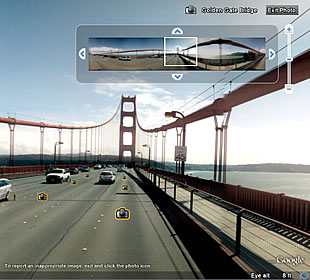
Google's Street View is good for more than just seeing where you're going when you need to find that new Thai place. It can also offer some great images for presentations. I got this idea from Slides that Stick, and today Google released some images from Vancouver in anticipation of the Olympics. Check out the view from the peak of Whistler.

The trick here is to click the link in the upper right that allows you to go to full screen. And then when you've adjusted the frame so it has the picture you want, you can stop moving your mouse to get the lines to disappear. Then hit the Print Scrn button on your keyboard (usually on the top row, right area near the Num Lk key). That makes a copy of your screen to the clipboard and then you can paste it into PowerPoint (or your application of choice) and crop away the unneeded bits.

Not too shabby. What street image do you want to use?

Friday, December 11, 2009

I want to be where the people are . . .

My wife's favorite movie is the "Little Mermaid" so I know some of the songs in there. One of them is "I want to be where the people are." I thought of that when I was considering this post.

I really want this blog to be effective and powerful in changing the way that preachers preach. There is so much that I would like to do to help, but I can't help unless there are people. I'm thinking about ways to drive traffic to this site.

I was looking around at the top Google results for preaching and I found Preaching.com, Preaching Today.com, and Biblical Preaching.net. I'm thinking about submitting some stuff to them. Do you think it would be useful?

How else could I spread the word and make this site a better tool for more people?

Monday, November 30, 2009

Google Image Swirl


Google just launched a new experimental feature called Image Swirl. It allows you to search for an image and then get a visual representation of the related images. This is pretty cool if you want to do a general search and get a specific picture. It's a lot easier than clicking through pages and pages of pictures to find the right one for your presentation.

I think this may find a regular spot in my image-search rotation. What tools do you find helpful for image searches?

Thursday, November 05, 2009

Simlar Search in Google Images

Google has added a new feature to their image search that allows you to find similar images. So if you see something you like, you can click on the link below the image to find more like that. Very cool. This is a good way to find images that will work well for you.