Find us on Google+
Showing posts with label video editing. Show all posts

Tuesday, June 21, 2011

Split and Trim

Perhaps the most basic thing (and one of the most important things) to learn about video editing is how to split and trim video clips.

Splitting clips means that you break one clip into two or more parts. You would use this tool if you wanted to insert another clip between the two or if you wanted to edit out the middle portion of a video.

Trimming video is similar to cropping a photo, you cut off portions of the beginning or end (or both) of the video so that you're left with only the section you want.

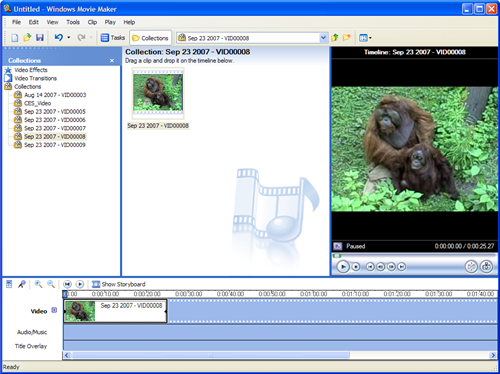
To split the video clip, click and drag the bar that shows your position in the video. It's a black bar that goes all the way across your video timeline and when you drag it, the preview window updates with the still from that portion of the video. In Windows Live Movie Maker (WLMM) you can simply click on the "Split" tool on the "Video Tools: Edit" tab in the ribbon. If you're using Windows Movie Maker (WMM) click on the "Clip" menu and then click "Split."

Trimming the video is very similar. Drag the bar to the point where you want the video to start (or stop) and then click on the "Clip" menu again and select "Set Start Trim Point" (or "End"). If you're using WLMM, the buttons for the start and end trim points are right next to the "Split" button on the "Video Tools: Edit" tab.

If you don't like the splitting or trimming you've done, you can use the "Undo" option. Press "Ctrl+Z" on your keyboard to set things back the way they once were. Then try again until you get it just right.

Monday, June 20, 2011

Windows (Live) Movie Maker - Introduction

One of the most accessible video editing tools is Windows Movie Maker and it's cousin, Windows Live Movie Maker. Mostly because they are free to download on Windows computers (if you have a Mac, you've got access to iMovie, so ten percent of you are in luck).

WMM (as it's called for short), is a good, if simple, video editing platform. You can do the basics of cropping a video down to size, transitioning between two video clips with a crossfade and putting a musical track over top of the whole thing. So, for most people, it has the chops to take your various video clips and make something usable. You can crop out just the section you need for PowerPoint presentation and fade the clip in and out smoothly - all in just a few minutes.

Windows Live Movie Maker is good (WLMM) for short, but it's a different program. It has some added features, and some that were taken away. With WLMM, you can upload your completed project directly to YouTube or Facebook. However WMM has the ability to create plugins that offer new features and an active community of users developing plugins.

What are the main video editing tasks that you have? What works best for you?

Friday, June 03, 2011

Video Primer - part 2

When it comes to editing video there are some basic terms that can be helpful to understand. If I were to tell you to insert a wipe between two clips, that might not make much sense, but it's a perfectly natural thing to say in video editing parlance.

Clip: A short segment of video. When you import a video into your editing software it will be divided into clips of a few seconds long so that you can move things around and edit things as necessary.

Split: If you have a clip that's too long you want to split it into multiple clips. You might take a clip that's two seconds long and split it into two clips of one second apiece.

Wipe: This is the video equivalent of a transition effect in PowerPoint. A wipe moves you from one clip to the next using some visual effect. Think of the transition from the scene of the star destroyer in space to the desert of Tatooine in Star Wars, that's a wipe effect. Other transition effects might be more subtle than a wipe.

Fade: A cross-fade will reduce the previous clip while fading in the new clip so that, for just a moment, you see both clips over each other. You can also cross-blur where the old blurs out and the new blurs in. You can fade through black or white. Fades are good, subtle transitions between clips.

Render: When you've piled on all the edits that you want in your video it's time to render. That means that you have the computer putt everything together. You might think this step is simple since you can watch a preview of your editing right in the software, but it's a low-quality preview. Rendering the full video can take quite a while, especially with a high-quality video. You might have your computer rendering for hours before you get a final video.

What other video editing terms are important to know?

Thursday, June 02, 2011

Video Primer - part 1

There's a lot of specialized terminology associated with digital video. Even knowing what's going on in the DV (digital video) world requires navigating acronyms aplenty. Here's a quick run-down of some of the more common terms you'll need to know.

Codec: the algorithm used to code and decode video files in a compressed format. A codec figures out what information can be dropped out from each frame of a video in order to make it smaller. The more aggressive the codec the lower the video quality, but the smaller the file. Some codecs are: DivX, Xvid, MPEG4 and H.264.

File Type: This is the indicator for what type of program should be used to open a video file. This is different than a codec. An Xvid encoded video can be in the AVI file type or WMV or even MOV. Not every codec is compatible with every file type, but each file type can support different codecs.

Media Player: This is the program that reads the file type and decodes the codec to play the video. So Quicktime is Apple's video player. It reads MOV files and decodes them for play on your computer. You can't play a WMV file in Quicktime since that's the Windows Media Video file type and it plays in Windows Media Player, though both the WMV and MOV file might use the same codec. Typically AVI files are the most compatible across different media players.  One media player that can address nearly every file type and codec is the VideoLAN VLC player. It's what I use.

Wednesday, June 01, 2011

Video Editing Basics

You're expected to be a Jack (or Jill) of all trades. Not only do you need to know what you're going to share, but you need to know how to craft a PowerPoint presentation that will back up your message and to include relevant media with the presentation. So you need to learn a bit about photo editing, some about audio and some about video editing.

The month of June I'm going to focus on some basic video editing tips. You won't learn how to use a professional video editing bay, but you'll be able to use the tools that are probably already on your computer to make slight changes in videos. You might need to convert videos from one file format to another. You might need to trim a video or splice a couple of clips together.

What do you wish you knew about video editing? What tips do you have to share?